Van: Roy Walhof <roy_walhof@hotmail.com> Datum: 14 november 2023 om 13:47:12 CET Aan: roy_walhof@outlook.com Onderwerp:Fw: <Web>Satisfaction – Product Quality; ASUS Service No=E23110022636-0001
Van: ASUS Support <servicecenter_emea@asus.com> Verzonden: maandag 13 november 2023 09:38 Aan: roy_walhof@hotmail.com <roy_walhof@hotmail.com> Onderwerp: Re: <Web>Satisfaction – Product Quality; ASUS Service No=E23110022636-0001
Customer Service Feedback
Dear sir,
Thank you for contacting Asus technical support.
My name is Pierre and I will help you with your problem.
From you email I understand that the BIOS update failed and you have already tried the BIOS recovery function.
Just to be sure the BIOS recovery is explained in detail below. If this does not help then the BIOS chip is corrupted,
You can try to replace the BIOS chip by purchasing a newly programmed BIOS chip. We do not provide any support for this nor do we offer this ourselves.
You can purchase the BIOS chip from the following websites:
Other than this we sadly have no options for your as we do not process repair requests ourselves. You could try to contact your vendor if they can help you with this but seeing as the motherboard is over 8 years old I doubt that they will offer any kind of service.
To provide you more detailed instruction, you can also click ASUS Youtube video link below to know more about [“WARNING! BIOS Recovery mode has been detected” message is displayed Processing method of abnormal boot]
(Ex: Prime X299 Edition 30 model)
Note: It may be interrupted while updating the BIOS, or the BIOS may be lost or damaged when the power is removed, and when the system cannot boot normally and enter the BIOS screen. You can use the rescue function CrashFree BIOS 3 program in the motherboard to recover the BIOS.
There are two ways to recover:
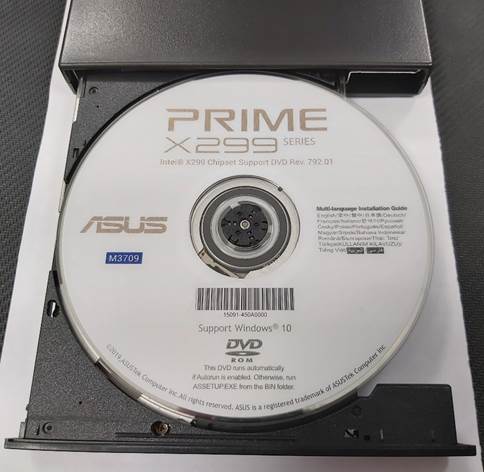
The first method: use the motherboard support DVD to recover the BIOS
The first method: use the motherboard support DVD to recover the BIOS:
Note: The BIOS version on the motherboard support DVD may be older than the BIOS version on the official website. If you want to use the latest BIOS version, please download it from the ASUS Download Center and use the USB flash drive recovery method to update.
1. After booting, turn on the optical drive and insert the motherboard support DVD.
(Ex: Prime X299 Edition 30 model)
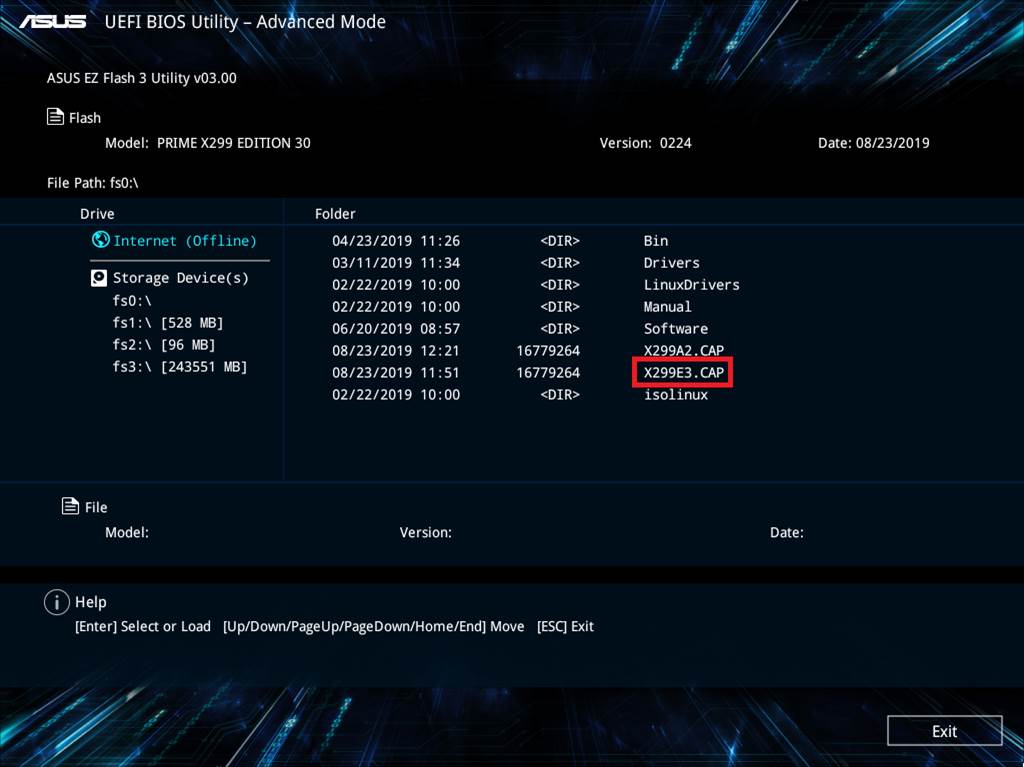
2. Restart the computer (press the keyboard: ctrl + alt + delete key at the same time), it will automatically enter the “EZ Flash 3” BIOS update interface.
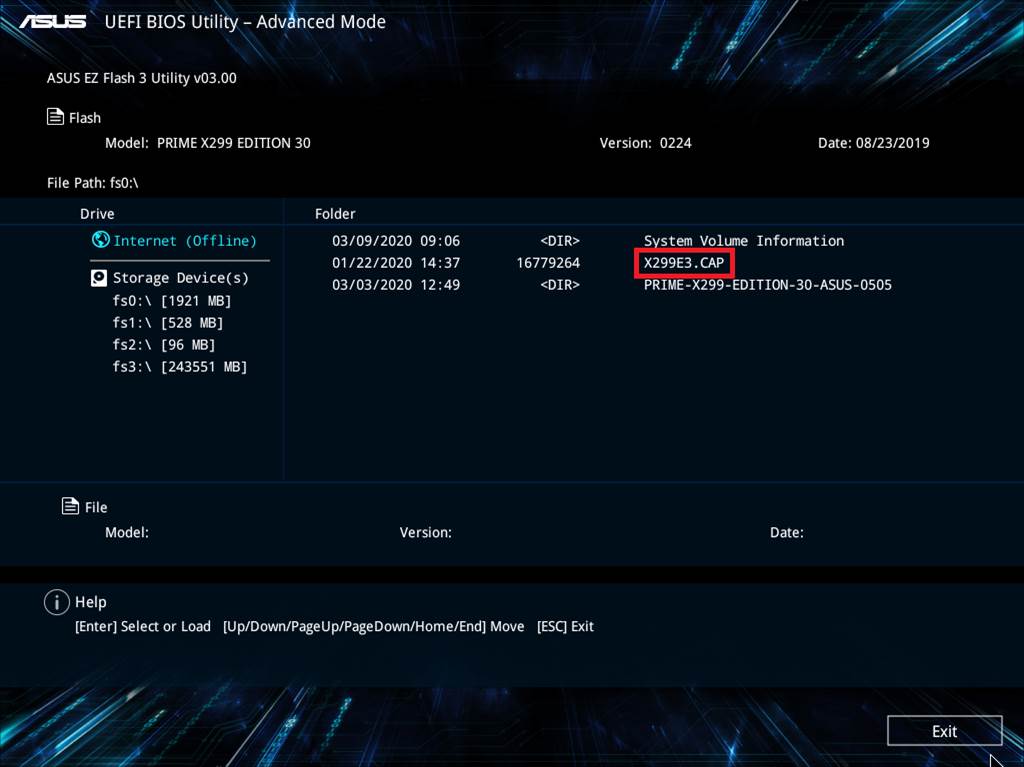
For example: Prime X299 Edition 30 models, the message WARNING! BIOS Recovery mode has been detected is displayed as follows, you can refer to the “X299E3.CAP” name in the error message as the update option (you can use the keyboard or mouse to click)
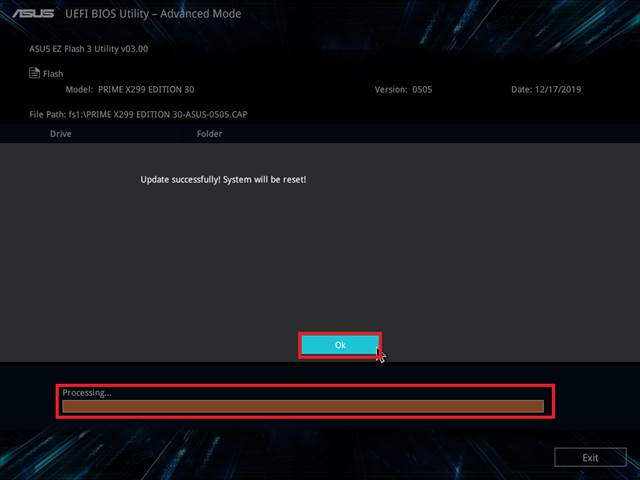
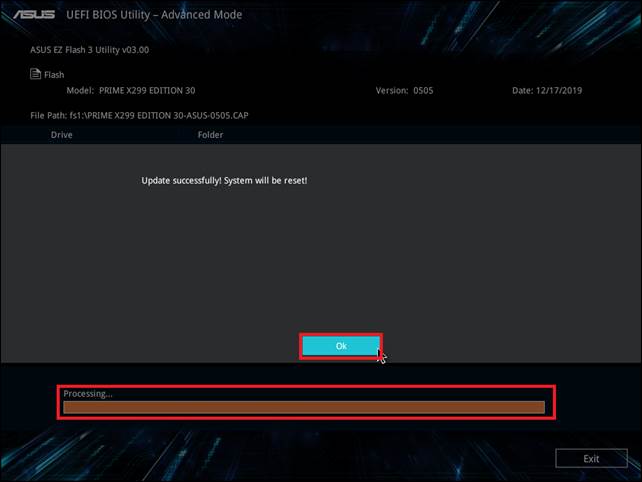
3. When the progress bar finishes updating, a prompt indicating that the update is successful will be displayed. Click OK and the computer will restart.
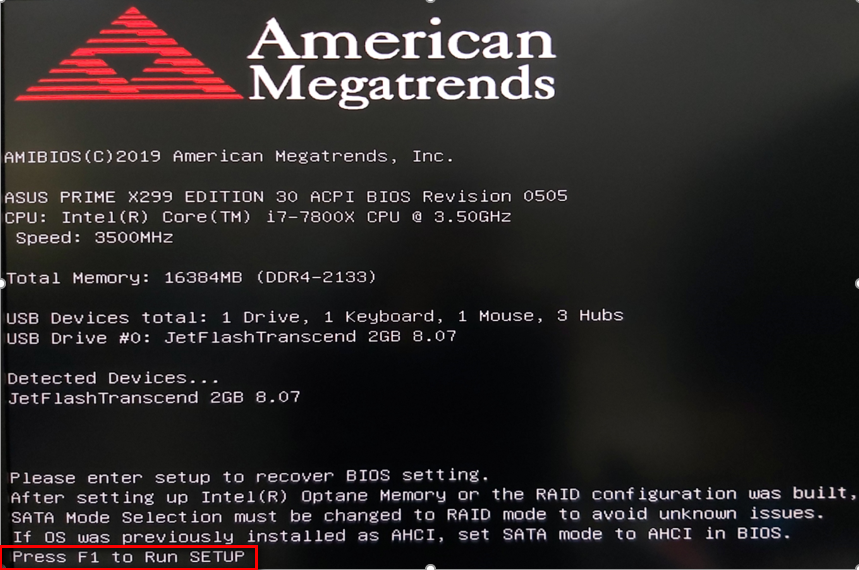
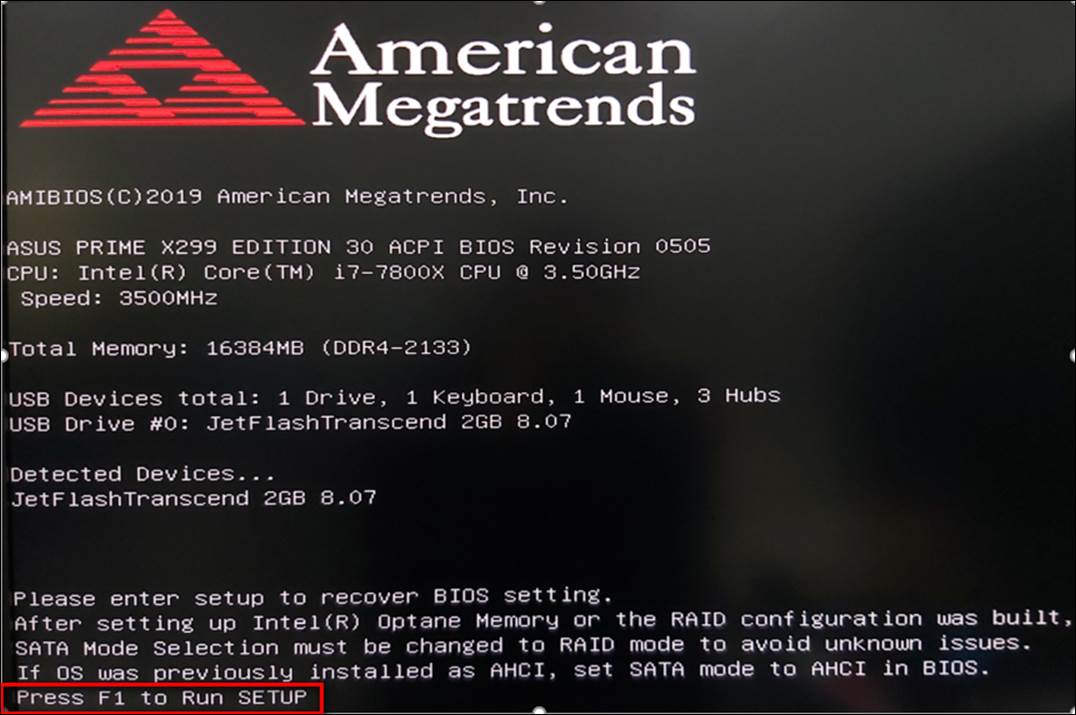
4. After the system restarts, you will be asked to press the <F1> button to enter the BIOS setup.
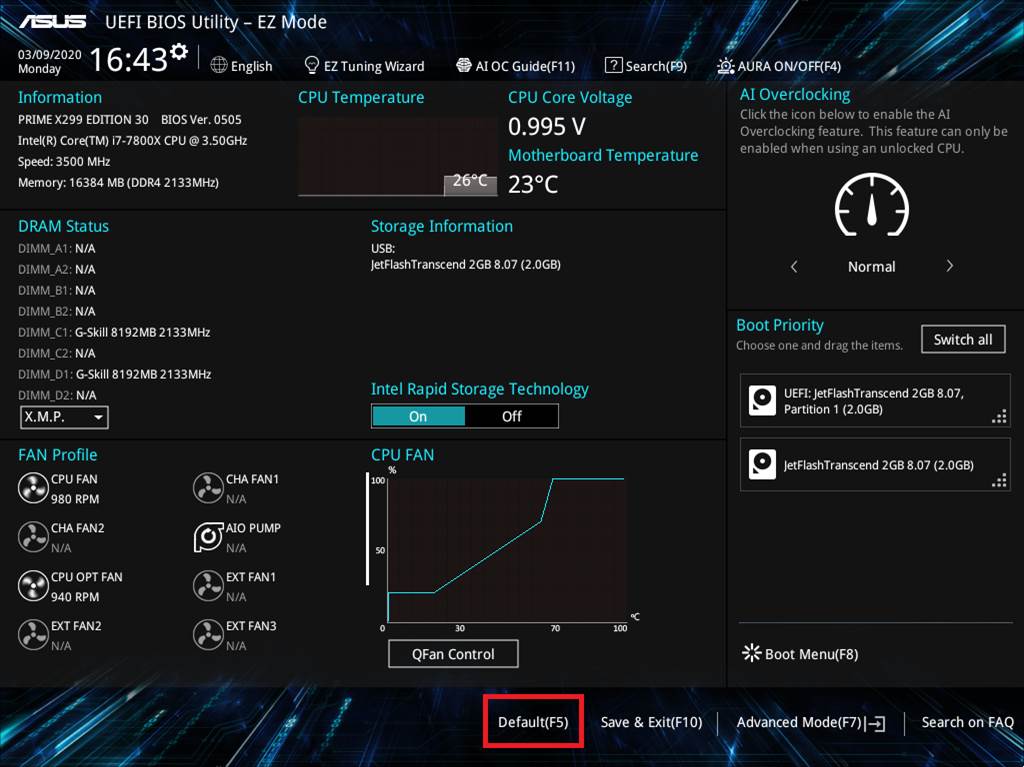
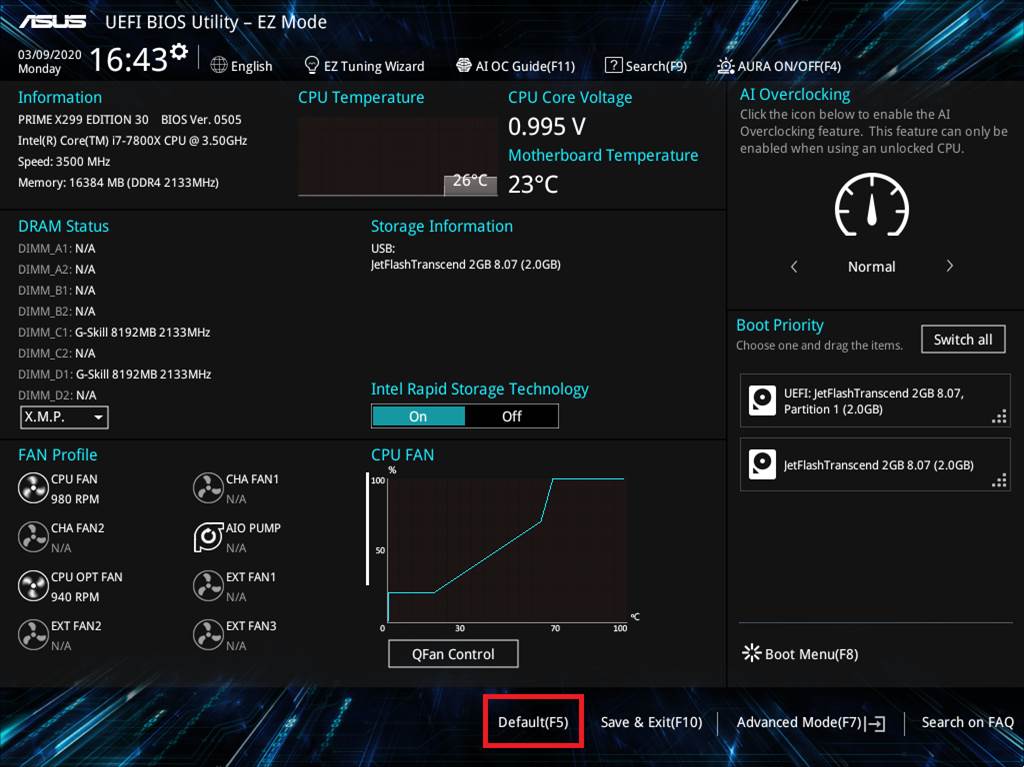
5. It is recommended that you follow the steps below to restore the default BIOS settings to avoid system instability caused by incorrect BIOS settings.
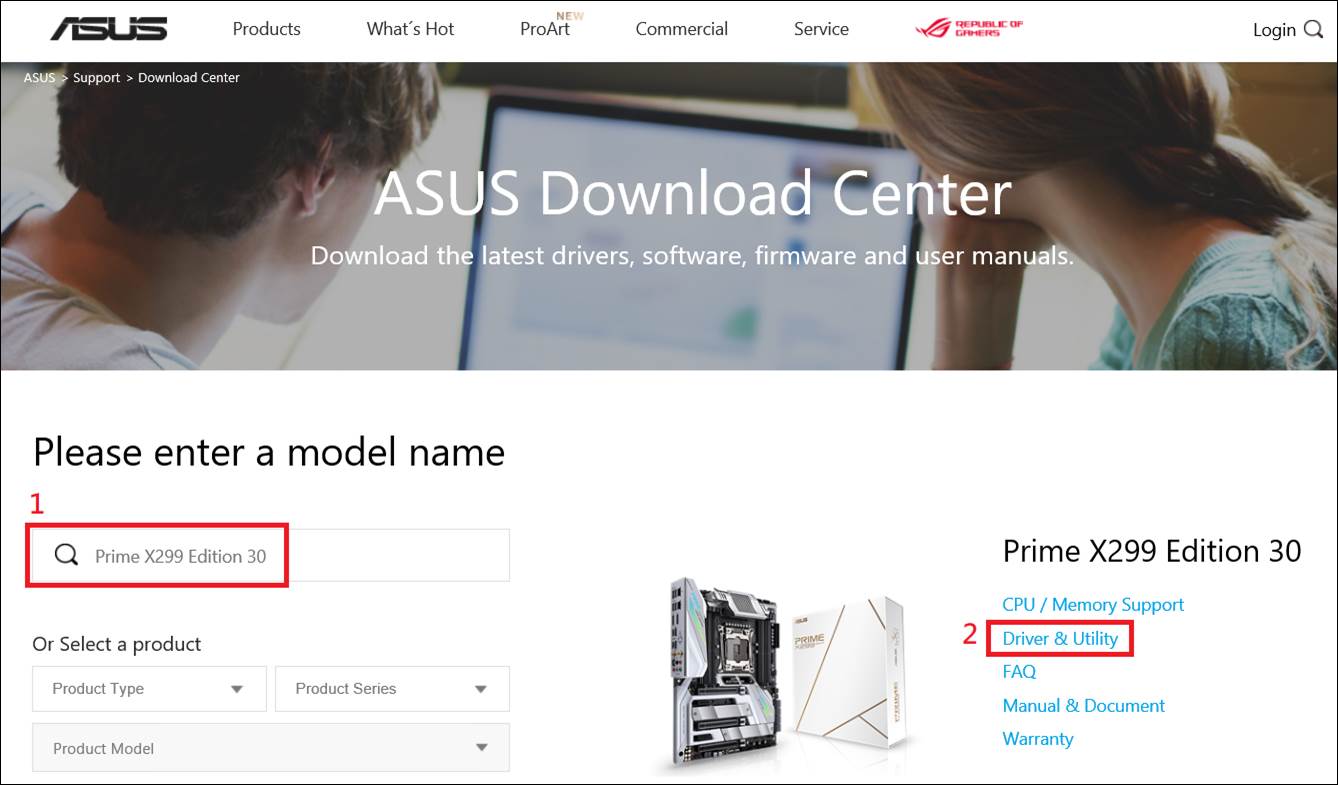
You can get the latest software, manuals, drivers and firmware at the ASUS Download Center. ASUS Download Center
If you need more information about the ASUS Download Center, please refer to this link.
4. Download the latest BIOS file corresponding to your motherboard model from the ASUS Download Center and save it to a USB flash drive.
Enter the model-> click on the driver and utility.
(Ex: Prime X299 Edition 30 model)
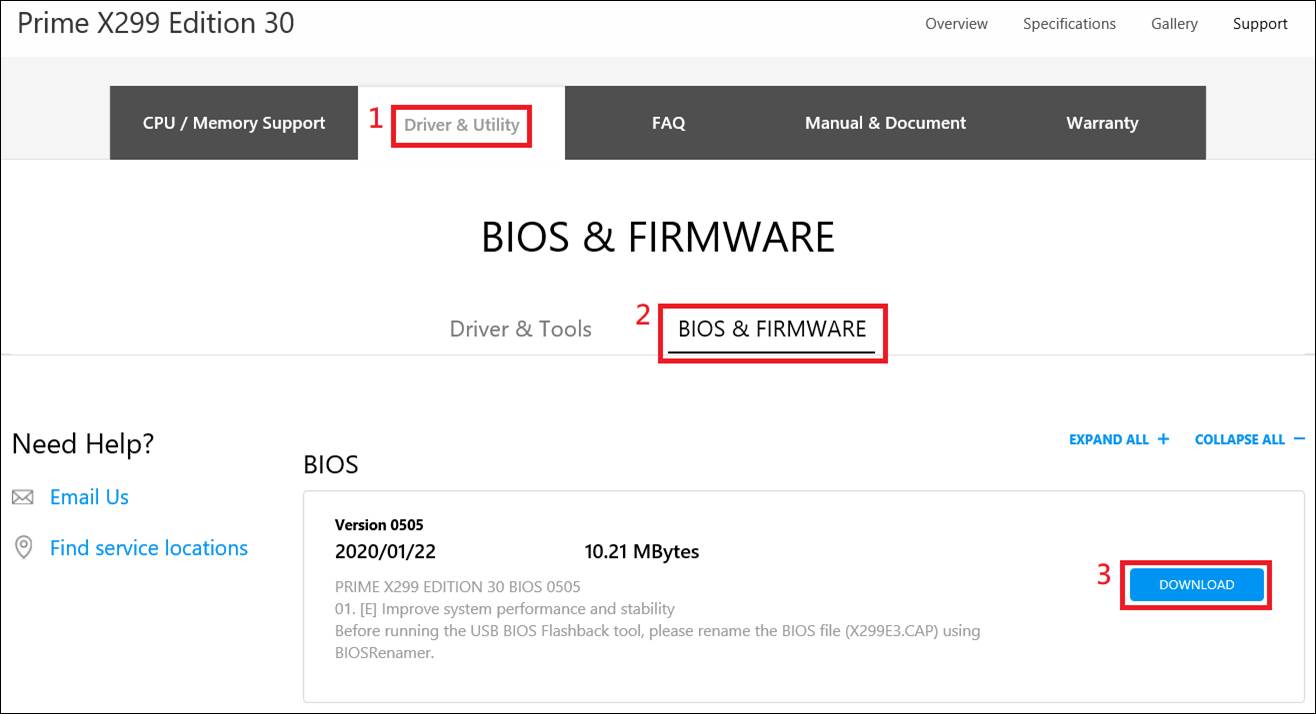
5. Click Drivers and Utilities -> BIOS and Firmware, select the required BIOS version and download (the latest version is recommended).
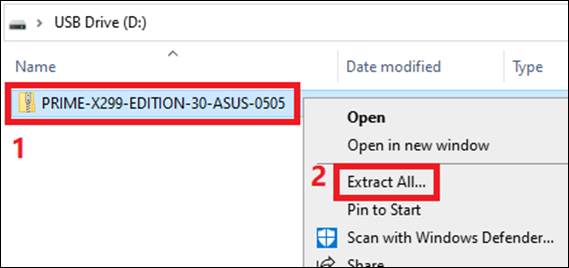
6. After clicking the download button, save the BIOS to a USB flash drive and decompress it (Windows 10 has a built-in decompression ZIP function)
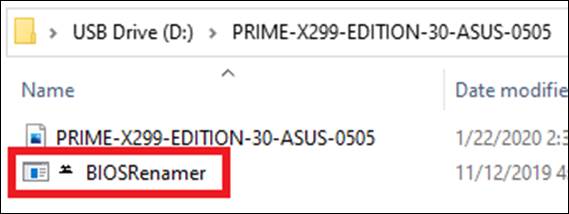
7. “BIOSRenamer” double-click to execute, you can automatically rename the BIOS file(.CAP).
8. Automatically rename the BIOS file(.CAP) is completed -> Press any key to end the naming window
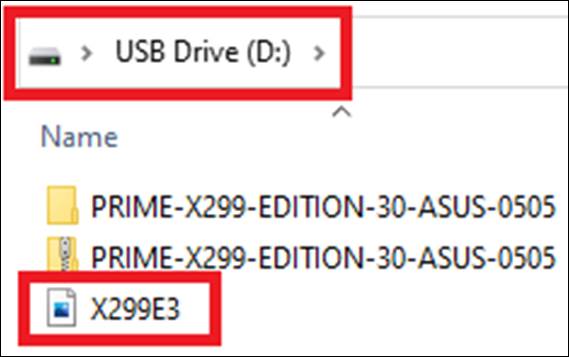
9. Update the new BIOS file (.CAP) to the root directory of the USB flash drive.
10. Plug the USB flash drive into the USB port of the motherboard.
11. Please restart the computer, and then the motherboard will automatically check whether there is a BIOS file in the device and enter the EZ Flash 3 application screen automatically.
For example: Prime X299 Edition 30 models, the message WARNING! BIOS Recovery mode has been detected is displayed as follows, you can refer to the “X299E3.CAP” name in the error message as the update option (you can use the keyboard or mouse to click)
12. When the progress bar finishes updating, a prompt indicating that the update is successful will be displayed.
Click OK and the computer will restart.
13. After the system restarts, you will be asked to press the <F1> button to enter the BIOS setup.
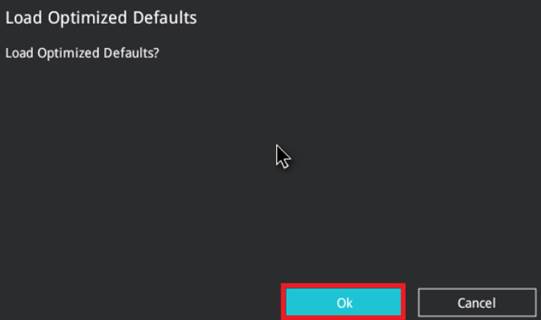
14. It is recommended that you follow the steps below to restore the default BIOS settings to avoid system instability caused by incorrect BIOS settings.
(Ex: Prime X299 Edition 30 model)
-> In the BIOS screen, press the F5 key
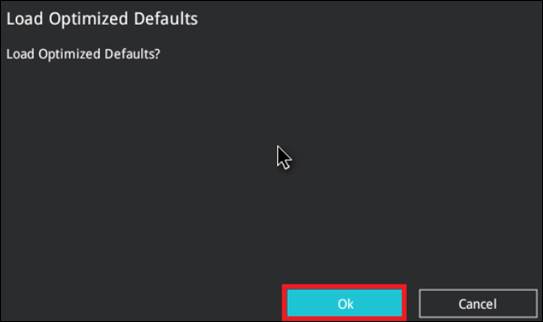
-> “Load Optimized Defaults” appears, click OK
Q&A:
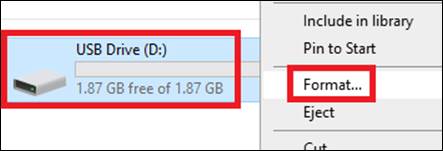
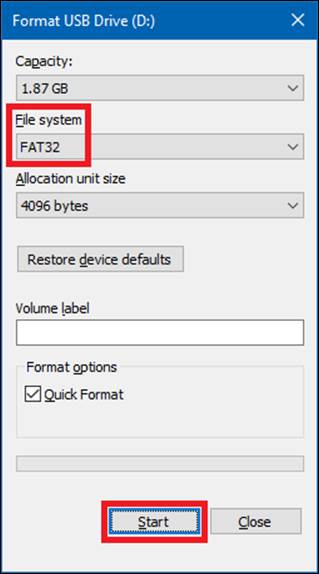
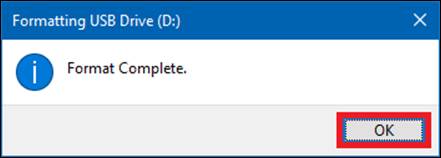
Q1: How to make a FAT16 / 32 format USB flash drive ?
A1: Please refer to the following steps:
1. Format the USB flash drive. On the USB flash drive, right-click and select Format FAT16 / 32. *Formatting will delete all data in the USB flash drive.
2. File system format, select FAT32, and then click Start.
3. Formatting completes.
If the error/problem still cannot be resolved, please contact your local ASUS service center.
Met vriendelijke groet, Pierre
Asus Customer Service Asus Technical Support Site: http://support.asus.com/NL/support/ Met het versturen van emails naar Asus, gaat u akkoord dat Asus uw email adres, account naam en andere gegevens die in uw emails beschreven staan verzamelt om aan uw service aanvraag te kunnen voldoen. Tevens gaat u ook akkoord met de “Asus Privacy Policy“.
[Contact Information] Name: Roy Email Address: roy_walhof@hotmail.com The nearest service site: NETHERLANDS Phone Number: 0
[Product Information] Product Type: Motherboard Product Model: Z170 PRO GAMING
[Problem Description]
Dear customer service representative,
Having purchased the Z170 pro gaming motherboard back in 2015. Along with all other parts, that had together been all assembled in a new PC. I decided just recently to update the motherboard BIOS for the 1st time since.
The update to V.3805 bios was done via AI Suite 3 and seemed initially to have been going as it is supposed to.
To my regret though after the reboot proces just when the warning was shown on screen to not shutdown the system and wait for auto reboot. The display was put on standby and nothing further happened thereafter.
Now if powering on the system nothing seems to happen and the screen remains blank. I’ve tried replacing the CMOS battery and putting a jumper over the corresponding pins for achieving the same result. I also attempted to fix things by way of putting the BIOS on a USB stick and getting crashfree bios utility started.
Nothing works or seems to change to my regret. The display is not turned on and the system seems to halt right at the start.
I can report that the fans on the GPU are spinning for a while and then stop doing so while the card remains heated. I did manage to get and keep the fans spinning, by wrapping a thin metal wire on the CHA_FAN2 pins (see accompanying vid).
To no avail of course, but a bit of a surprise.
Is there anything I can do to get my PC up and running, get the BIOS properly installed finally?
Thank you for your effort.
=================================================================================================================================== This email and any attachments to it contain confidential information and are intended solely for the use of the individual to whom it is addressed. If you are not the intended recipient or receive it accidentally, please immediately notify the sender by e-mail and delete the message and any attachments from your computer system, and destroy all hard copies. Please be advised that any unauthorized disclosure, copying, distribution or any action taken or omitted in reliance on this, is illegal and prohibited. Any views or opinions expressed are solely those of the author and do not represent those of ASUSTeK.
For pricing information, ASUS is only entitled to set a recommendation resale price. All customers are free to set their own price as they wish. ===================================================================================================================================